LTI stands for Learning Tools Interoperability. This technology allows you to securely and seamlessly integrate external learning content—such as online courses or microlearnings—into Studytube.
Thanks to a secure connection using a unique key, the content is embedded in your academy. Users are automatically redirected to the correct training on the external platform.
⚠️ Important: Always check in advance whether the external provider supports LTI and which version(s) they offer. Studytube supports LTI 1.0, 1.1, and 1.3.
Would you like to add multiple learning items at once? Please contact your Studytube contact person to discuss the available options.
Add Content via LTI in Three Steps
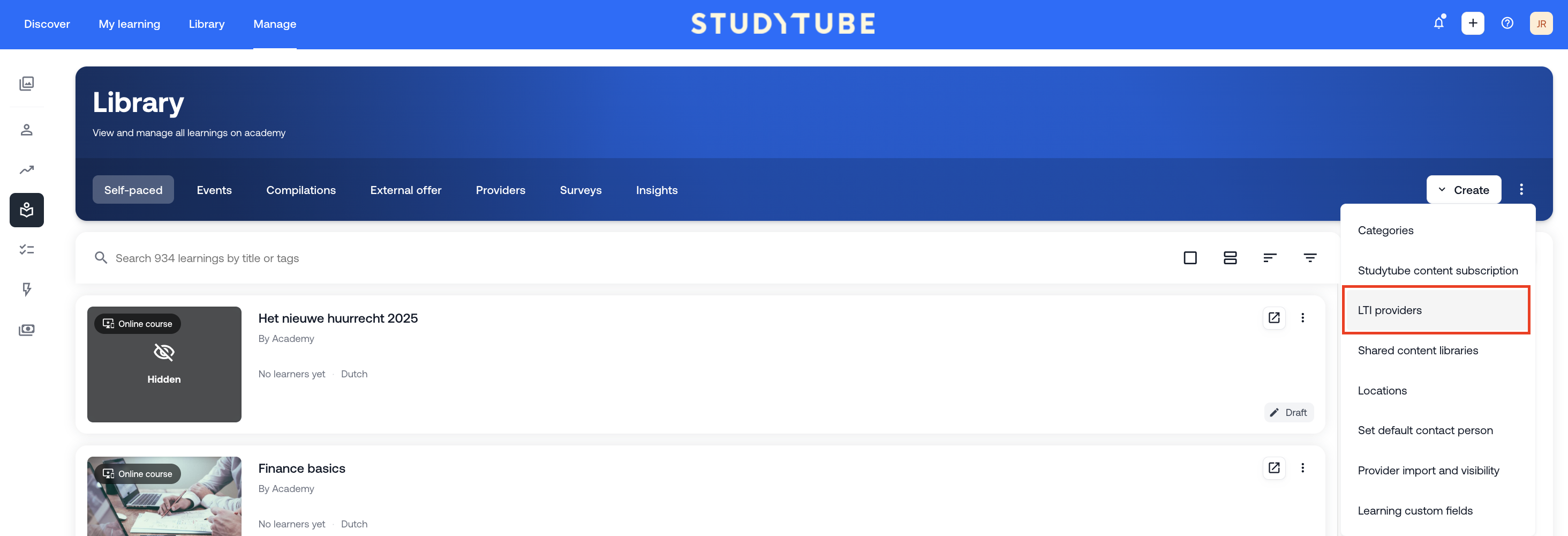
Step 1: Create an LTI Provider
- Go to Library > three dots > LTI Providers.
- Click Configure new LTI provider in the top-right corner.
- Select the correct LTI version (1.0/1.1 or 1.3).
- Give the provider a recognizable name.
For LTI 1.0 or 1.1
Enter the details provided by the external provider:
Provider Key
Provider Secret
Provider URL
Set when the content is considered completed:
Minimum score per learning item, or
One general minimum score for all items from this provider
Click Create to add the provider.
For LTI 1.3
Enter the following details:
OIDC connection initiation URL
OIDC redirect URL
JWKS URL
Provider URL
Then set the minimum score and click Create.
To complete the connection:
Click the three dots next to the provider.
Select Detailed Output Fields.
Copy and share the following details with the external provider:
Client ID
Deployment ID
OIDC Issuer
Authentication URL
Key URL
Once the external provider has processed this information, the connection becomes active.
Step 2: Add Content via LTI
Adding Online Trainings
Go to Library > Create.
Click Create an online training.
Select LTI as the training format.
Choose the previously created LTI provider.
Enter:
External LTI link (Launch URL)
Minimum score
Training name
Click Create.
You can adjust additional settings afterward. Some providers may require extra parameters—only enter these if they have been provided to you.
Adding Microlearnings (such as videos or documents)
Go to Library > Videos / Articles / Documents.
Click Upload or Add.
Choose From an external LTI provider.
Select the correct LTI provider.
Enter:
External LTI link
Minimum score
Content title
Click Next to complete the remaining steps.
The content has now been successfully added via LTI.
Step 3: Test the Added Content
Before making the training available to a larger group, we recommend starting with a small pilot group (e.g. 5 employees).
Ask this group to verify that:
The training is accessible
The training can be completed fully
The status is correctly displayed as Completed in Studytube
Check in the LMS whether:
Participants have started the training
Completion is correctly registered
Is everything working as expected? Then you can make the training available to a larger group.
If something isn’t working correctly, please contact the LTI provider or reach out to us at service@studytube.nl.
Was this article helpful?
That’s Great!
Thank you for your feedback
Sorry! We couldn't be helpful
Thank you for your feedback
Feedback sent
We appreciate your effort and will try to fix the article